
시험 이름: Microsoft Excel Expert (Excel and Excel 2019)
인증사: Microsoft
인증시험: Microsoft Office Specialist

이상 63326+ 고객만족도
즉시 다운로드 Microsoft : MO-201 질문과 답변

결제후 바로 다운가능: 결제가 완료되면 시스템 자동으로 구입한 제품을 고객님 이메일로 발송해드립니다. (12 시간 이내에 받지못하셨다면 메일이나 온라인 서비스 상담으로 문의하십시오.) 참고 : 스팸메일함도 확인하는 것을 잊지 마십시오.
60일내 100% 환불보장
몇년간 시험결과에 대한 조사에 의하면 저희 덤프 합격율은 99.6%에 달한다는 결과를 얻었습니다.  저희 제품에 신심을 갖고 시험에 도전해보세요.
- 최고시험공부자료
- 세가지 버전 선택 가능
- 365일 무료 업데이트
- 수시로 공부가능
- 100% 안전한 쇼핑체험
- 불합격시 60일내 덤프비용 환불

- 실력테스트 가능한 소프트웨어버전
- 실제 시험환경 체험가능
- 시험패스에 자신감이 생김
- MS시스템을 지지
- 시험대비 테스트엔진버전
- 수시로 오프라인 연습

- 공부를 가장 편하게 할수 있는 온라인버전
- 즉시 다운로드 가능
- 모든 웹브라우저에 적용
- 언제든 공부 가능한 버전
- 높은 시험패스율
- Windows/Mac/Android/iOS등을 지지

- 출력가능한 PDF버전
- IT전문가가 출시한 공부자료
- 결제후 바로 다운가능
- 언제 어디서나 공부 가능
- 365일 무료 업데이트
- PDF버전샘플 무료다운
Microsoft Excel Expert (Excel and Excel 2019)은 Microsoft의 공인 역량을 입증하는 자격으로 취업과 이직 시장에서 높은 가치를 인정받습니다. Fast2test의 MO-201 모의고사 25문항으로 체계적으로 준비하여 자격 취득에 한 걸음 더 가까워지시기 바랍니다.
Microsoft MO-201 시험 개요:
| 인증 벤더: | Microsoft |
|---|---|
| 시험명: | Microsoft Excel Expert (Excel 및 Excel 2019) |
| 시험 번호: | MO-201 |
| 합격 점수: | 700 / 1000 |
| 지원 언어: | 스페인어, 프랑스어, 중국어(간체), 중국어(번체), 독일어, 일본어, 한국어, 영어 |
| 시험 시간: | 50분 |
| 실제 시험 문항 수: | 5~6개의 프로젝트 시나리오 / 약 25~30개의 작업 |
| 자격증 유효 기간: | 평생 유효 |
| 응시료: | USD 100* (지역에 따라 상이함) |
| 시험 형식: | 프로젝트 기반 과제, 실무 기반 평가, 실습형 시뮬레이션 |
| 관련 자격증: | Microsoft Office Specialist: Expert (Office 2019) |
| 권장 교육: | Microsoft 공식 학습 경로 |
| 시험 등록: | Certiport 등록 Microsoft Learn MO-201 페이지 |
| 샘플 문제: | Microsoft MO-201 샘플 문제 |
| 응시 방법: | 온라인 감독 시험 또는 공인 Certiport 시험 센터 방문 응시 |
| 전제 조건: | 필수 선수 조건은 없으며, Excel 실무 경험 150시간 이상 보유 권장; MO-200 (Excel Associate) 자격 취득 시 도움이 되지만 필수는 아님 |
| 공식 요강 URL: | https://learn.microsoft.com/en-us/credentials/certifications/exams/mo-201/ |
Microsoft MO-201 시험 요강 주제:
| 섹션 | 비중 | 목표 |
|---|---|---|
| 주제 1: 통합 문서 옵션 및 설정 관리 | 15~20% | - 통합 문서 검토 및 보호 관리 - 통합 문서 구성 - 통합 문서 및 언어 옵션 구성 |
| 주제 2: 데이터 관리 및 서식 지정 | 20~25% | - 데이터 표 및 범위 관리 - 데이터 가져오기, 변환 및 통합 - 사용자 지정 서식 및 레이아웃 적용 |
| 주제 3: 고급 차트 및 표 관리 | 25~30% | - 고급 차트 작성 및 수정 - 피벗차트 작성 및 수정 - 피벗테이블 작성 및 관리 |
| 주제 4: 고급 수식 및 매크로 작성 | 30~35% | - 논리 및 통계 함수 사용 - 함수를 활용한 데이터 조회 - 수식에 함수 적용 - 간단한 매크로 작성 및 수정 |
Microsoft MO-201 관련 궁금증 해결 가이드
MO-201 시험은 Microsoft의 Microsoft Office Specialist: Excel Expert (Office 2019) 자격 취득을 위해 치르는 공인 시험입니다. 이 시험은 전문가 수준의 역량을 평가합니다. 관련 자격으로는 Microsoft Office Specialist: Expert (Office 2019) 등이 있습니다. Fast2test에서는 Microsoft Excel Expert (Excel and Excel 2019) 시험 대비를 위한 25문항의 연습문제와 모의고사를 제공하고 있습니다.
MO-201 시험은 총 5~6개의 프로젝트 시나리오 / 약 25~30개의 작업문항이 출제되며, 시험 시간은 50분입니다. 문항당 배정되는 시간이 넉넉하지 않아 문제를 읽고 판단하는 속도가 중요하므로, 평소에 시간을 재고 문제를 푸는 연습을 권해 드립니다. Fast2test의 모의고사를 활용해 실제 시험과 동일한 제한 시간 안에 전체 문항을 풀어 보시면 시간 배분 감각을 익히는 데 큰 도움이 됩니다.
MO-201 시험의 합격 기준 점수는 700 / 1000이며, 공식 응시료는 USD 100* (지역에 따라 상이함)입니다. 불합격 시 재응시에는 응시료를 다시 전액 지불해야 하므로 한 번 불합격하면 비용 부담이 두 배로 늘어납니다. 본시험 전에 Fast2test의 25문항 연습문제로 실력을 충분히 점검하신 뒤 응시하시는 것을 권장합니다.
MO-201 시험의 응시 조건은 다음과 같습니다. 필수 선수 조건은 없으며, Excel 실무 경험 150시간 이상 보유 권장; MO-200 (Excel Associate) 자격 취득 시 도움이 되지만 필수는 아님 보다 정확하고 최신의 응시 자격 정보는 공식 시험 안내 페이지에서 반드시 확인하시기 바랍니다.
MO-201 시험은 아래의 공식 접수 채널을 통해 신청하실 수 있습니다.
시험은 온라인 감독 시험 또는 공인 Certiport 시험 센터 방문 응시 방식으로 진행되니 접수 전에 응시 환경을 미리 확인해 보시기 바랍니다.
Microsoft에서는 MO-201 시험 대비를 위한 공식 추천 교육 과정을 제공하고 있습니다.
공식 교육으로 개념을 정리하신 후 Fast2test의 25문항 연습문제를 풀어 보시면 학습한 내용을 실전 문제로 바로 점검하실 수 있습니다.
가능합니다. Fast2test은 Microsoft Excel Expert (Excel and Excel 2019) 연습문제의 무료 샘플을 제공하여 구매 전에 문제의 수준과 해설 구성을 직접 확인하실 수 있습니다. 제품 구매 후에는 365일 동안 무료 업데이트가 제공되며, 업데이트 기간이 만료된 이후에는 50% 할인된 가격으로 갱신하실 수 있습니다.
Fast2test은 구매일로부터 60일 이내에 해당 시험에 응시하여 불합격한 경우 환불 보장을 제공합니다. 다만 구매 후 3일 이내의 응시, 자료 다운로드 후 미응시, 무료 자료 및 만료된 주문은 적용되지 않으며, 응시자 성명과 결제자 성명이 일치해야 합니다. 환불을 신청하시려면 시험 후 2일 이내에 응시 등록 확인서 사본과 공식 성적표(Score Report) PDF를 제출해 주셔야 하며, 접수 후 7일 이내에 처리됩니다. 환불 대신 제품 교환을 선택하시면 동일 가치의 시험 자료 2개를 무료로 받으실 수 있으며, 기존 구매 제품의 업데이트 서비스도 그대로 유지됩니다. 제품은 결제 후 즉시 다운로드할 수 있으며 1분 이내에 이메일로도 발송됩니다. 2시간이 지나도 받지 못하신 경우 고객센터로 문의해 주시기 바라며, 설치 가능한 컴퓨터 대수에는 제한이 없습니다.
MO-201 시험 범위는 총 4개의 도메인으로 구성되어 있습니다. 대표적인 도메인으로는 데이터 관리 및 서식 지정(20~25%), 통합 문서 옵션 및 설정 관리(15~20%), 고급 수식 및 매크로 작성(30~35%) 등이 출제됩니다. 각 도메인의 세부 항목과 전체 출제 범위는 위의 Exam Topics 영역에서 확인하실 수 있습니다.
최신 Microsoft Office Specialist MO-201 무료샘플문제
SIMULATION
Instructions
Exam Environment
Exam Interface and Controls
The exam panel provides access to the project task(s). Each project has an associated file in which you will perform the project tasks.
1. Project file
2. Split bar
3. Exam panel
You can modify the exam interface to fit your needs in the following ways:
* To increase or decrease the exam panel font size, press Ctrl+Plus or Ctrl+Minus.
* To change the height of the exam panel, drag the split bar between the project file and the exam panel.
* To restore the interface to the default appearance, click the Restore button near the upper-right corner of the exam panel.
4. The Information bar at the top of the exam panel displays the current project and total number of
- A. * Select all value cells for First-Year and Fifth-Year Sales.
* Drag the fill handle to the Fifth-Year Projections column. - B. * Select all value cells for First-Year and Second-Year Sales.
* Drag the fill handle to the Fifth-Year Projections column.
정답: B 🗳️
SIMULATION
Instructions
Exam Environment
Exam Interface and Controls
The exam panel provides access to the project task(s). Each project has an associated file in which you will perform the project tasks.
1. Project file
2. Split bar
3. Exam panel
You can modify the exam interface to fit your needs in the following ways:
* To increase or decrease the exam panel font size, press Ctrl+Plus or Ctrl+Minus.
* To change the height of the exam panel, drag the split bar between the project file and the exam panel.
* To restore the interface to the default appearance, click the Restore button near the upper-right corner of the exam panel.
4. The Information bar at the top of the exam panel displays the current project and total number of projects, the remaining exam time, and the following commands:
* Collapse Panel. Minimizes the exam panel to provide more space for the project file.
* Restart Project. Closes and reopens the current project file without saving your changes.
* Submit Project. Saves your changes, submits the project file, and moves to the next project.
* Calculator. A calculator is available in some exams. You are not required to use the calculator.
* Restore. Restores the size and position of the project file and exam panel to the defaults.
* Help. Displays information about the exam interface.
5. The Content area displays the task tabs and the current task description.
6. The Navigation area at the bottom of the exam panel contains the following commands.
* Previous Task/Next Task. Saves your response and moves to the previous or next task in the current project.
* Leave feedback after exam. Flags the task to indicate that you want to leave feedback about it after the exam.
* Mark for review. Flags the task to indicate that you want to return to it before you finish the exam.
* Mark as complete. Flags the task to indicate that you feel you have completed the task.
In projects that contain multiple tasks, you can switch between tasks by clicking the task tab, Next Task button, or Previous Task button.
End of the instructions.
This project has only one task.
Configure Excel to automatically evaluate formulas only when a workbook is saved, and not each time data changes.
- A. 1. Click "File" in the ribbon.

2. And then click "Options".
3. In the "Excel Options", choose the "Formulas".
4. And then in the "Calculation Options", check the option "Manual".
5. Check the Recalculate workbook before saving option.
6. And then click "OK" in the window.
7. Next save the workbook. - B. . 1. Click "File" in the ribbon.
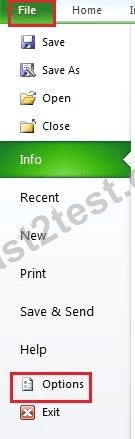
2. And then click "Options".
3. In the "Excel Options", choose the "Formulas".
4. And then in the "Calculation Options", check the option "Manual".
5. Check the Recalculate workbook before saving option.
6. And then click "OK" in the window.
7. Next save the workbook.
정답: A 🗳️
설명: (Fast2test 회원만 볼 수 있음)
SIMULATION
Instructions
Exam Environment
Exam Interface and Controls
The exam panel provides access to the project task(s). Each project has an associated file in which you will perform the project tasks.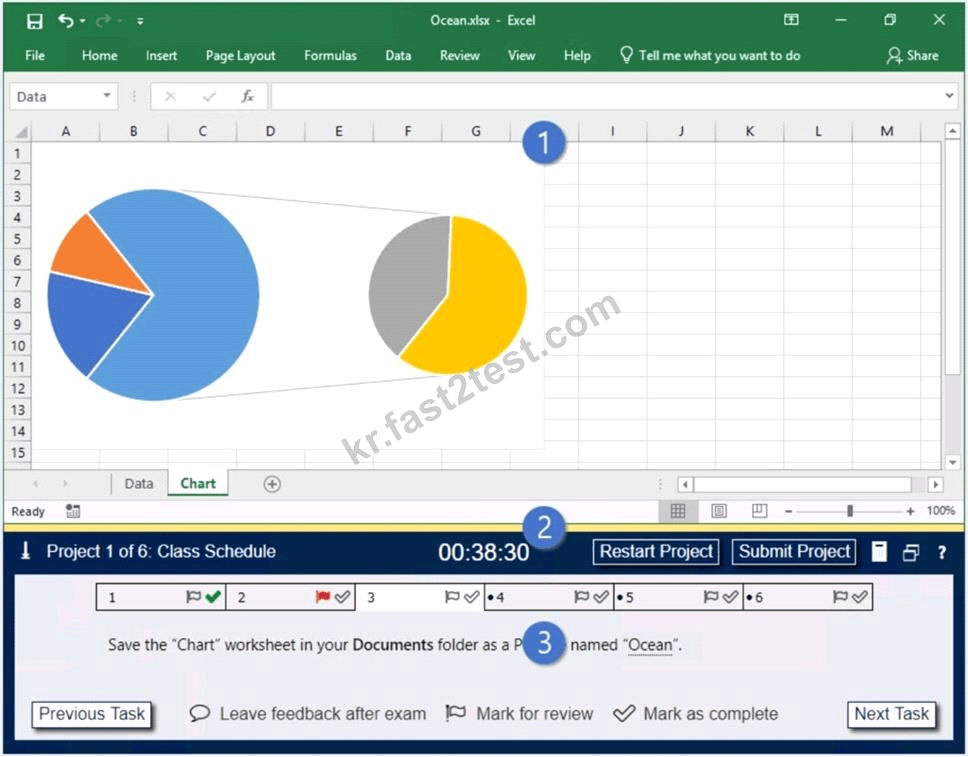
1. Project file
2. Split bar
3. Exam panel
You can modify the exam interface to fit your needs in the following ways:
* To increase or decrease the exam panel font size, press Ctrl+Plus or Ctrl+Minus.
* To change the height of the exam panel, drag the split bar between the project file and the exam panel.
* To restore the interface to the default appearance, click the Restore button near the upper-right corner of the exam panel.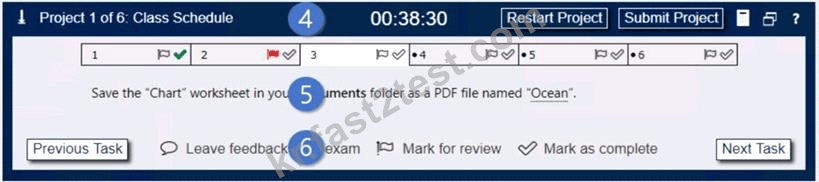
4. The Information bar at the top of the exam panel displays the current project and total number of projects, the remaining exam time, and the following commands:
* Collapse Panel. Minimizes the exam panel to provide more space for the project file.
* Restart Project. Closes and reopens the current project file without saving your changes.
* Submit Project. Saves your changes, submits the project file, and moves to the next project.
* Calculator. A calculator is available in some exams. You are not required to use the calculator.
* Restore. Restores the size and position of the project file and exam panel to the defaults.
* Help. Displays information about the exam interface.
5. The Content area displays the task tabs and the current task description.
6. The Navigation area at the bottom of the exam panel contains the following commands.
* Previous Task/Next Task. Saves your response and moves to the previous or next task in the current project.
* Leave feedback after exam. Flags the task to indicate that you want to leave feedback about it after the exam.
* Mark for review. Flags the task to indicate that you want to return to it before you finish the exam.
* Mark as complete. Flags the task to indicate that you feel you have completed the task.
In projects that contain multiple tasks, you can switch between tasks by clicking the task tab, Next Task button, or Previous Task button.
End of the instructions.
On the "Sales Summary" worksheet, create one chart that displays each representative's "Total Sales" as an Area chart and the "Grand Total Percentage" as a secondary axis Line chart.
The chart size and position do not matter.
- A. 1. Select the range.
2. On the Insert tab, in the Charts group, click the Combo symbol.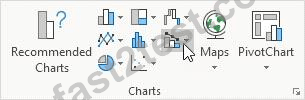
3. Click Create Custom Combo Chart.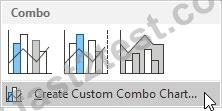
The Insert Chart dialog box appears.
4. Plot the Grand Total Percentage series on the secondary axis.
7. Click OK. - B. 1. Select the range.
2. On the Insert tab, in the Charts group, click the Combo symbol.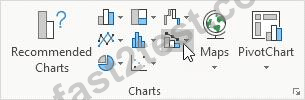
3. Click Create Custom Combo Chart.
The Insert Chart dialog box appears.
4. For the Total Sales series, choose Area as the chart type.
5. For the Grand Total Percentage series, choose Line as the chart type.
6. Plot the Grand Total Percentage series on the secondary axis.
정답: B 🗳️
설명: (Fast2test 회원만 볼 수 있음)
 987 개 고객 리뷰고객 피드백 (*일부 유사하거나 오래된 댓글은 숨겨졌습니다.)
Fast2test표 MO-201덤프 아직 유효합니다.
덤프를 잘 공부하시면 합격하기에는 충분한거 같네요.

구수한 덤프

비싼 Microsoft시험이라 불합격받으면 어쩌지 하며 긴장을 많이 했는데 붙어서 다행이네요.
다음 자격증도 취득해야 하는데 MO-201덤프자료 DC안될가요?

혼자가 아닌 나
Fast2test 최신버전 MO-201덤프에서 다 나와요.
덤프 열공하고 한방에 붙으세요.

뻔데기
취업준비생인데 취업이력서에 넣을 스펙중에 하나로 자격증을 취득하려고 알아보다 들어오게 되었습니다.
시간도 적게 들여서 자격증을 취득하는데는 역시 덤프가 있어야 한다고 생각합니다.자격증은 일단 취득했습니다.
친절한 상담원님 말씀대로 IT쪽은 역시 전문 기술을 요구하기에 일단 자격증으로 문을 두드리고 실무능력을 잘 키워가겠습니다.
도토리
Fast2test에서 보내주신 최신버전덤프를 3일간 잘 외우고 시험봤는데 참 쉽게 시험을 합격했어요.
Microsoft인증 MO-201덤프자료 유효합니다.

스타벅스

학생이어서 시험비가 어마어마하여 덤프선택에 많은 고민이 있었는데 아무래도 시험봐야하는데 Fast2test덤프를
빌려쓰는 셈치고 구매결정을 내렸습니다. 어차피 시험은 봐야하는것이고 덤프가 있는편이 더 좋은것이니까.
시험탈락하면 덤프비용환불서비스도 있고해서...다행이도 환불까지 오지 않고 MO-201시험패스했네요.
그냥 감사할 마음뿐입니다.

invite
문제가 바뀔가봐 덤프 구매시간에 많이 집착했는데 업데이트되면 업데이트버전도 무료로 준다고 해서 바로 구매했습니다.틈만 나면 덤프문제 외우고 잘 외워졌다싶을때 시험쳤는데 좋은 결과 나왔네요.좋은 자료 주셔서 감사한 마음 뿐입니다.
갈비맨
일단 결과를 말하자면 Microsoft MO-201시험 패스구요. 보기순서가 바뀌어서 나왔더라구요.
개념이해+덤프외우기 하시면 별문제없이 합격하실수 있을것 같네요. 공부한 보람있네요.
스스랑랑
Microsoft MO-201 덤프를 구매하고 시험봤는데 합격받았구요. 점수도 잘 나왔습니다.
Fast2test덤프는 아직 유효합니다. 시험문제가 바뀔가봐 많이 걱정했는데 아직까지는 유효한 좋은 자료였습니다.
거부기
Microsoft자격증정보를 검색하다 덤프라는걸 알게 되었는데 시간이 급해서 Fast2test덤프를 사버렸어요.
결제하니 바로 다운받게 되어있어 좋더군요. 결론은 MO-201시험 무난히 합격했습니다.
눈사람
덤프는 시원하게 최신으로 구입해서 보기로 결정하고 검색하다 Fast2test자료로 했는데
최신일자라 적중율이 높아 Microsoft MO-201시험 합격했어요. 감사합니다.
블루베리
Microsoft MO-201 덤프를 구매하고 시험봤는데 합격받았구요. 점수도 잘 나왔습니다.
Fast2test덤프는 아직 유효합니다. 시험문제가 바뀔가봐 많이 걱정했는데 아직까지는 유효한 좋은 자료였습니다.

rain
영어라 외우기 힘들었지만 Microsoft시험비가 비싼 부담하에 어쩔수 없이 죽어라 공부하고 시험합격했어요.
MO-201덤프에서 거의 나와서 MO-201시험패스가 생각보단 많이 쉬었습니다.

시험패스왕
MO-201덤프에 문제만 잘 외우면 합격할수 있다고 하여 정말 덤프만 열공하고 합격받았어요.
Fast2test덤프 대박 ! 정말 똑같게 나오더라구요.
MO-200시험도 여기서 자료 구입하려구요. 감사합니다.
시험알러지
Microsoft시험응시료가 장난이 아니게 비싸서 긴장을 엄청나게 했는데 덤프에서 공부한 문제가
척척 나오니 긴장이 풀리면서 차근차근 풀어나갔는데 MO-201시험 패스했습니다.
응시료가 너무 비싸요. Fast2test담당자님, 덤프라도 팍팍 세일가격에 주세요. ^^

막걸리엔 파전
결제후 바로 다운가능 MO-201
덤프를 주문하시면 결제완료후 1분내에 주문시 사용한 메일로 덤프 다운로드 링크가 발송됩니다.
365 일 무료 업데이트서비스
구매일로부터 365일 업데이트서비스 제공, 365일후 업데이트를 받으려면 덤프를 50%가격으로 재구매 하시면 됩니다.

덤프비용 환불약속
덤프구매후 60일내에 시험을 보셔서 불합격 받으시면 덤프비용 전액을 환불해드리거나 다른 과목으로 교환해드립니다.
프라이버시보호정책
저희는 고객님의 프라이버시를 존중 합니다. 주문 진행, 서비스 제공, 그리고 지원과 새로운 출시 제품 또는 모든 업데이트 소식을 보내는 등 오로지 정해진 목적으로만 정보를 수집하고, 저장하고 사용 합니다.

우리와 연락하기
문의할 점이 있으시면 메일을 보내오세요. 12시간이내에 답장드리도록 하고 있습니다.
근무시간: ( UTC+9 ) 9:00-24:00
월요일~토요일